In short: In Webmin 2.670 with the Authentic theme, tick a folder in File Manager and press the spacebar, or right-click it and choose Properties, to see its total size; the Size column shows only the folder entry. For disk usage, run du in Command Shell.
You open a folder listing in Webmin File Manager and every file shows its size, but a folder such as photos just says 4 KiB, even when it holds gigabytes. This guide shows how to get the real total, and why it can differ from what du reports.
Tested on: Webmin 2.670 with the Authentic theme 26.70, on Ubuntu 24.04, logged in as root.
Why does a folder show 4 KiB in Webmin File Manager?
The Size column shows the size of the folder entry itself, not of what is inside it. File Manager does not add up the contents for the listing, so it shows the directory entry's own size rather than a recursive total[1][3]. In this example, that is 4 KiB.
In a test, a folder photos holding two subfolders with 3 MiB and 5 MiB files was listed as 4 KiB, exactly like an empty folder next to it.
How do you see the total size of a folder in File Manager?
Open File Manager from the Tools menu in the left-hand menu, go to the parent folder, and use either route.
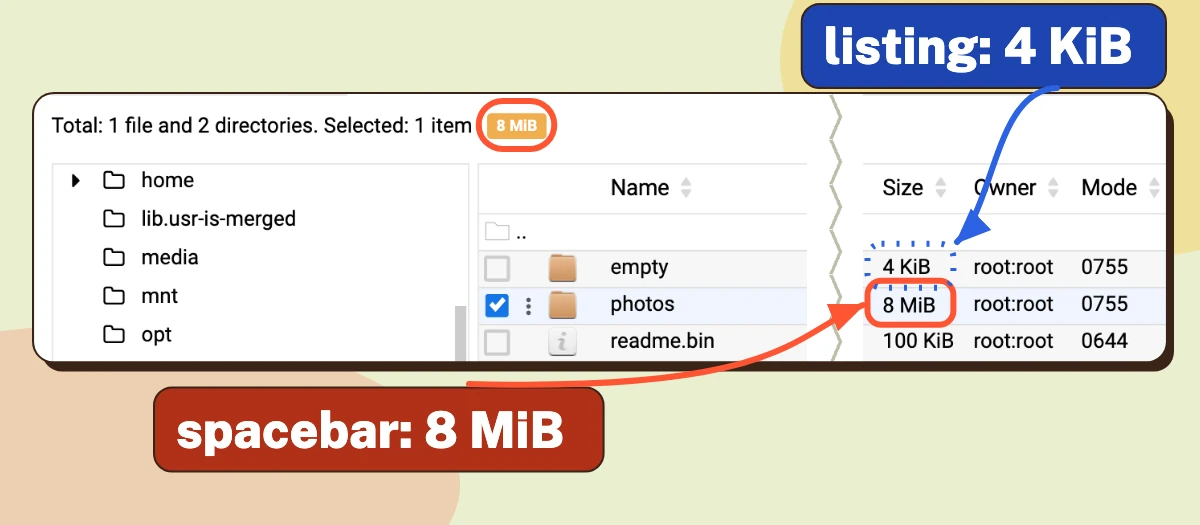
- Spacebar. Tick the checkbox of the folder and press the spacebar. The Size cell of that row changes to the total (8 MiB for
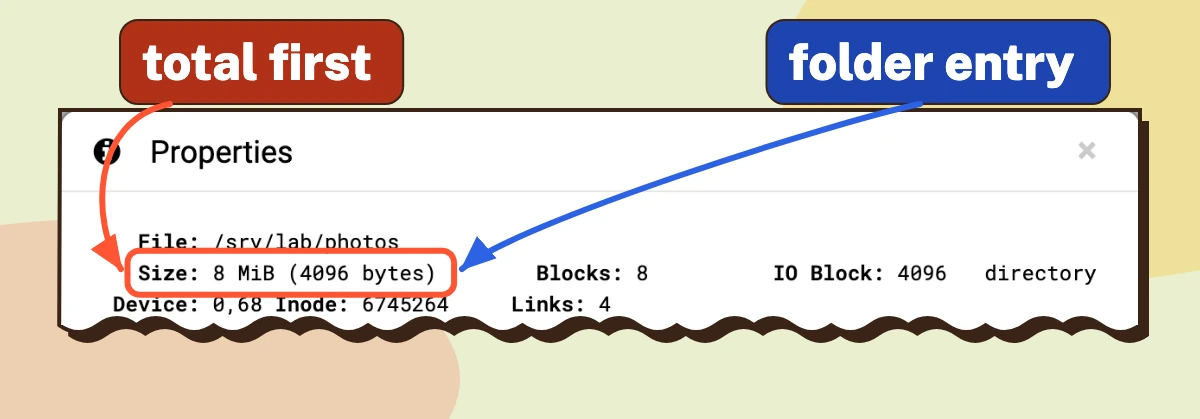
photos), and the same figure appears in a badge next to "Selected: 1 item" in the status line above the listing. - Properties. Right-click the folder and choose Properties. The window shows
Size: 8 MiB (4096 bytes). The number in brackets is the folder entry itself, the same 4 KiB as in the listing.
If the spacebar does nothing, look for the option Calculate size on spacebar in the File Manager module configuration and set it to Yes. If your theme does not offer either route, use Command Shell below.
Why does File Manager show a different size than du?
The two answer different questions. File Manager adds up the sizes of the files inside the folder, which is the number of bytes they contain. du reports the disk space the files occupy, counted in whole blocks. --apparent-size reports apparent size instead of allocated disk space; use -b to print that size in bytes[4][6].
In a test, a folder with 300 files of one byte each showed 300 bytes in File Manager, while du -sh reported 1.2M. For the 8 MiB photos folder the two were close: 8 MiB against 8.1M.
Use the File Manager figure for "how much data is in this folder", and du for "how much disk space does it take".
How do you check folder size with du in Webmin Command Shell?
Open Tools, then Command Shell, type the command into the field and press Return or click Execute command[2]. Interactive programs such as vi do not run there.
These commands only read sizes, but Command Shell runs whatever you type, so check the command and the path before you run it. You use this information at your own risk, and iLogr accepts no responsibility for any loss or damage.
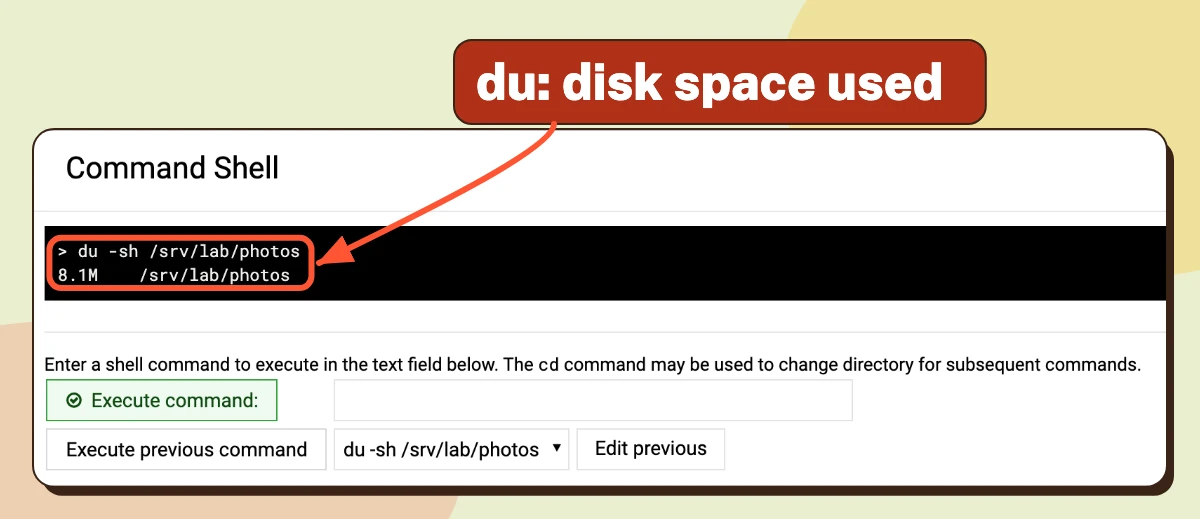
du -sh /path/to/folder
-s prints one total for the folder and -h writes it in units such as M and G. For the photos folder it printed 8.1M /srv/lab/photos[4].
To find which subfolder is the biggest, list one level and sort by size:
du -h --max-depth=1 /path/to/folder | sort -h
Identify the folder's own total by its path. Among the other rows, the largest displayed subfolder sizes appear towards the bottom, but rounded values can tie. sort -h is a GNU sort option, so it is there on current Ubuntu and Debian, and may be missing on other systems. On a large folder du can take a while to finish.
What did the old Info and Get Size steps do?
Earlier versions of this article described the Java-based File Manager: select the folder, click the Info button, then Get Size to see total bytes, files and directories. That File Manager was replaced by the HTML one described above, and the Webmin team announced in 2015 that the Java version would be deprecated and removed[1][5]. The Webmin 2.670 package has no Java File Manager module, so those buttons do not exist there.
If File Manager is missing from a user's Webmin menu altogether, see How to Enable the HTML File Manager Module for Webmin Users.
Webmin itself is free, open-source software released under the BSD licence[7].
References
Numbers in square brackets in the text link to these sources.
- Webmin documentation: File Manager (opens in a new tab).Used for: the HTML File Manager replacing the Java one, and its menus.
- Webmin documentation: Command Shell (opens in a new tab).Used for: where Command Shell is and which commands cannot run.
- Webmin source: filemin module (opens in a new tab).Used for: the listing showing entry sizes with no folder total.
- GNU Coreutils manual: du invocation (opens in a new tab).Used for: du options and apparent size versus file system usage.
- Virtualmin forum: File manager for Webmin (opens in a new tab).Used for: the 2015 plan to deprecate and remove the Java File Manager.
- Webmin source: web-lib-funcs.pl (opens in a new tab).Used for: the size function adding up file sizes without directory entries.
- Webmin on GitHub (opens in a new tab).Used for: the BSD licence and the description of Webmin.