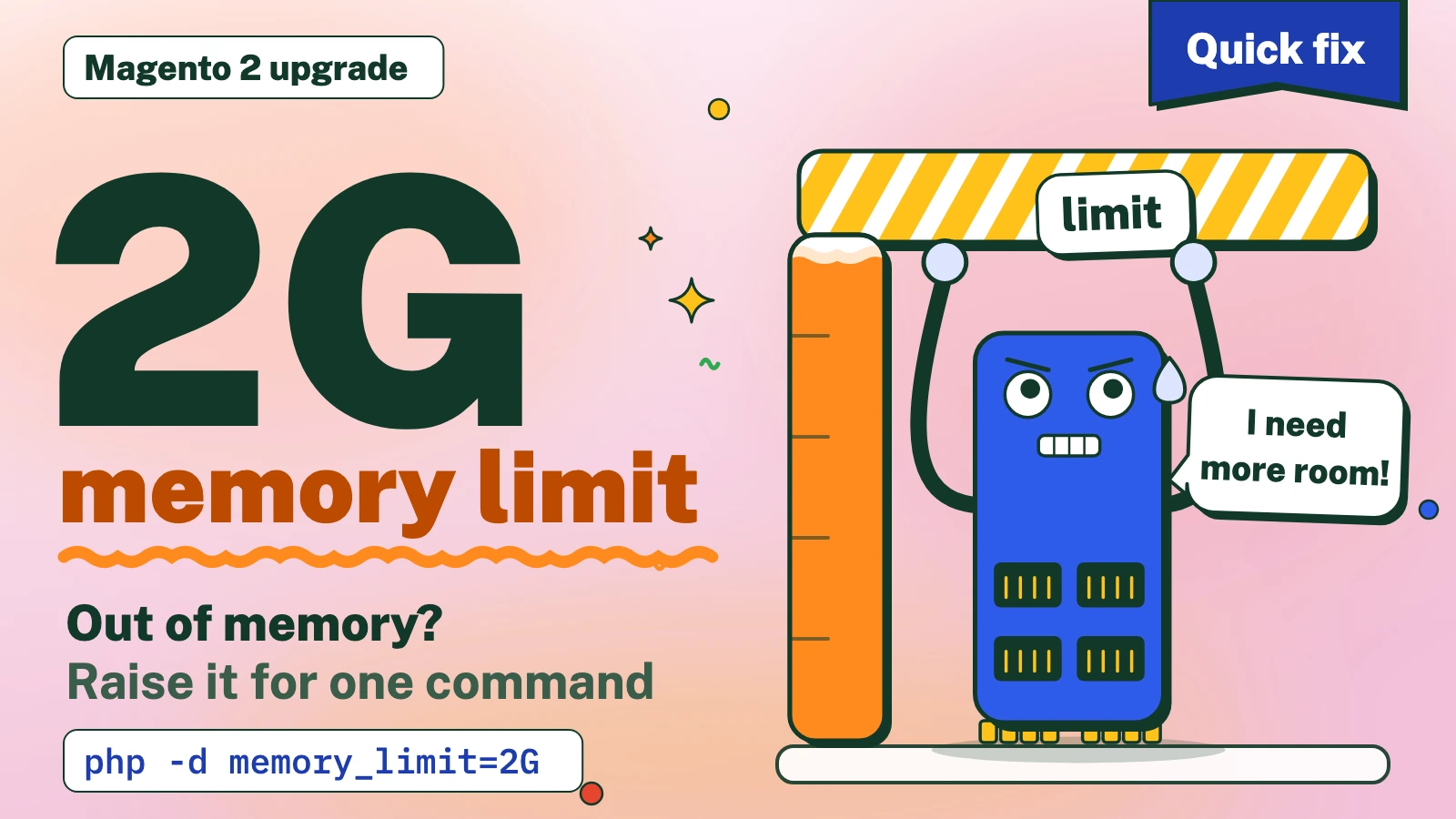
In short: Composer and bin/magento stop with “Allowed memory size exhausted” when the PHP command line allows less memory than the step needs. Raise the limit for the one command that fails, 2 GB is a sensible start, instead of changing the whole server.
You start a Magento 2 upgrade, run composer update, and after a while it stops with Allowed memory size of 1610612736 bytes exhausted. The PHP process that runs Composer went past the memory ceiling it was given. The message alone does not say why it needed so much. This page first covered an upgrade from Magento 2.2 to 2.3 on PHP 7.3. The error and the fix are the same today, and this version also covers bin/magento, which fails with the same message but needs a different switch.
What was tested. The limits below were measured with Composer 2.10.3 and Composer 2.2.30 on PHP 8.5.11, and the memory used by a dependency resolution was measured on a Magento Open Source 2.4.9 package tree. The exact figures are in the tables. The bin/magento advice rests on Adobe's own documentation, not on a test.
What does "Allowed memory size exhausted" mean during a Magento 2 upgrade?
PHP gives every script a ceiling, the memory_limit setting. The PHP manual describes it as "the maximum amount of memory in bytes that a script is allowed to allocate", with a default of 128M and -1 for no limit.[1] When a script goes past it, PHP stops with the message you see, and it prints the ceiling in bytes.
The number identifies the ceiling, not the program:
- 1610612736 bytes is 1536 x 1024 x 1024, exactly 1.5 GiB. Composer raises its own limit to 1.5 GiB when the PHP limit is lower, so this figure usually means Composer ran at its floor, with no environment override, and still needed more.[2][6]
- Any other number (134217728 for 128M, 268435456 for 256M, 1073741824 for 1 GiB) is a limit that was set, in
php.inior by an option, and it can come from Composer or from Magento.bin/has no floor of its own, so it shows themagento setup: upgrade php.inivalue. Check which command printed the message. Adobe documents this failure on a production upgrade at the 1 GB default and fixes it by raising the limit to at least 2G.[3]
An upgrade runs Composer and then Magento's own commands (setup:upgrade, setup:di:compile), so you can meet the error in either. Adobe's PHP settings page lists compiling code and deploying static assets at 1G, debugging at 2G, and testing at about 3-4G.[4]
How do I fix it for a single Composer command?
Set the limit for that run only. There are two ways, and both work with the PHP and Composer you already have.
Before you run anything: composer update rewrites composer.lock and replaces the contents of vendor/. Copy composer.json and composer.lock somewhere safe first, try the upgrade on a staging copy before the live store, and run everything at your own risk. Those copies do not cover the database: before any setup:upgrade, take a database and file backup that you have restored successfully on staging. iLogr cannot see your site and accepts no responsibility for damage, data loss or downtime.
The environment variable is the shortest. Composer reads COMPOSER_MEMORY_LIMIT and uses it as PHP's memory_limit.[2][5]
COMPOSER_MEMORY_LIMIT=2G composer update
The other way passes the setting to PHP and starts Composer through that PHP. The -d option sets one php.ini entry for one run. Unset COMPOSER_MEMORY_LIMIT first (unset COMPOSER_), because an exported variable overrides -d. If command -v composer points to a shell wrapper and not to the Composer script or PHAR file, give php the path of that file instead.
php -d memory_limit=2G "$(command -v composer)" update
Use -1 instead of 2G for no limit.[2] Only do that when the server has the memory, because a script with no ceiling can use all of it.
The same line works for the other Composer commands that touch the whole tree:
COMPOSER_MEMORY_LIMIT=2G composer install
COMPOSER_MEMORY_LIMIT=2G composer dump-autoload
If a server has several PHP versions, start Composer with the one your site uses. Write the full path to that binary, such as /usr/bin/php8.3 (yours will differ), in place of php, and check it first with php -v. This was the reason the original version of this page used full paths.
Which setting wins when more than one is present?
In a test, Composer used the environment variable first, then a PHP limit that was already high enough, and raised only a low one:
| How Composer was started | Limit Composer ran with |
|---|---|
| PHP limit 256M, nothing else | 1536M (the floor) |
-d memory_limit=2G |
2G |
-d memory_limit=-1 |
-1 |
PHP limit 256M and COMPOSER_MEMORY_LIMIT=3G |
3G |
COMPOSER_MEMORY_LIMIT=-1 |
-1 |
The figures were identical on Composer 2.10.3 and Composer 2.2.30. So a low php.ini value does not have to be edited for a Composer run. A PHP limit below 1.5G is lifted to 1.5G (tested here at 256M) unless the variable is set, which is why that one number turns up so often.
Does the same fix work for bin/magento setup:upgrade?
No. Only Composer reads COMPOSER_MEMORY_LIMIT. In the same test, a plain php command started with COMPOSER_MEMORY_LIMIT=3G set kept the 256M that the PHP limit gave it. bin/magento is such a command, so give PHP the setting directly:
php -d memory_limit=2G bin/magento setup:upgrade

Composer does pass its current limit to PHP scripts that it starts itself through an @php entry, because it adds a matching -d memory_limit to that call.[6] In the test, such a script saw the 3G. Other commands do not get it, so a bin/magento call written as a plain command inside a scripts block needs its own -d. The Composer documentation gives the same warning: a limit set this way mainly covers Composer and its immediate processes, and other programs it starts may need their own.[2]
The same applies to setup:di:compile. setup:upgrade also changes the database, so take the backup from the notice above first.
How do I make the higher limit permanent?
Raise it only where you need it. First find the file the command line really loads, because the command line and the web server can read different files:
php --ini | grep "Loaded Configuration File"
Adobe's advice is to use the same settings for the command line and the web server, and, if there are two php.ini files, to change both.[4] The entry looks like this, and a changed file takes effect on the next command:
memory_limit = 2G
Remember that this is a ceiling, not a reservation.[1] A higher value costs nothing until a script uses it, but the web limit applies to every request, so a very high value there lets one runaway request take a lot of memory. Where you cannot edit php.ini, the per-command switches above need no change on the server.
How much memory did one Magento 2.4.9 dependency resolution use?
In a test, a dry-run composer update for a Magento Open Source 2.4.9 project, which resolved a lock of 623 packages (with the platform checks switched off, because the test image lacked two PHP extensions), peaked at 154 MiB, as reported by Composer's own --profile output. The result was the same at every limit that was high enough:
| Memory limit given to Composer | Result |
|---|---|
| 128M | Stopped: Allowed memory size of 134217728 bytes exhausted |
| 192M | Finished, peak 154 MiB |
| 256M, 512M and unlimited | Finished, peak 154 MiB |
This measures the resolution step only, on one fresh tree with scripts, plugins and platform checks off. The test ran with --dry-run, so it did not download or unpack the packages, and it did not run bin/magento. It does not predict the memory use of another project or of a complete upgrade.
What if raising the limit does not help?
Check these in order:
- Composer 2. The Composer documentation says to confirm you are on Composer 2, and 2.2.0 or later if possible, because Composer 1 used much more memory.[2] Run
composer --version. - The machine itself. A limit above the physical memory does not help. If Composer stops with
proc_, the server ran out of memory, and the Composer documentation points to adding swap space on a small server.[2]open( ): fork failed - Cannot allocate memory - A higher number. If the message persists at 2G, Adobe's guidance for the upgrade failure is to keep raising the value.[3]
References
Numbers in square brackets in the text link to these sources.
- PHP Manual, "Description of core php.ini directives" (memory_limit) (opens in a new tab).Used for: what memory_limit sets, its default and the value -1.
- Composer, "Troubleshooting" (Memory limit errors) (opens in a new tab).Used for: the 1.5G floor, Composer 2, swap and the child-process warning.
- Adobe, "setup:upgrade fails due to PHP memory exhaustion on Commerce Cloud" (opens in a new tab).Used for: the 1 GB failure and the fix of raising to at least 2G.
- Adobe, "PHP settings" (installation prerequisites) (opens in a new tab).Used for: memory_limit by task and matching command line and web settings.
- Composer, "Command-line interface" (environment variables) (opens in a new tab).Used for: the COMPOSER_MEMORY_LIMIT variable and what it does.
- Composer source, "bin/composer" and "EventDispatcher.
php" (opens in a new tab) .Used for: the 1536M floor, the variable taking priority and the memory flag passed to @php scripts.
3 Responses
Thank you prashant, i was having the same issue, fixed it using this command.
It is quite interesting blog post worth of reading. I really thankful for giving an opportunity to read an informative article like this! I really appreciate this post thank you for sharing these type of posts.
Thanks