---
title: How to Enable the HTML File Manager Module for Webmin Users
url: https://ilogr.com/enable-html-file-manager-module-webmin-users/
published: 2020-02-11
updated: 2026-10-27
author: iLogr Team
categories: Linux
reading_time: 6 min
description: Tick File Manager for a Webmin user, then limit its folders and Unix user. In a Webmin 2.670 test, a plain tick gave root access to the whole disk.
---
# How to Enable the HTML File Manager Module for Webmin Users
**In short:** In Webmin, open Webmin Users, edit the user and tick File Manager in the Tools group. A plain tick gave that user root access to the whole disk in a Webmin 2.670 test, so also limit the module’s folders and Unix user, or use a safe user.
You have a login to a Webmin server, you need to copy, edit or delete some files, and there is no File Manager in the menu. Webmin only shows a user the modules that user has been given, so the fix is a change made by a user who can edit Webmin users, normally root. This guide shows the steps in current Webmin, what the user can reach once the module is on, and how to narrow that down. Tested on: Webmin 2.670 with the Authentic theme, on Ubuntu 24.04, in a test setup.
## What is the HTML File Manager in Webmin?
It is the module called File Manager (directory name `filemin`), which lets a user browse, upload, download, edit, copy, move and delete files in a web page [1]. It ships with Webmin, which is free and open source under the BSD-3-Clause licence [6]. Other hosting panels have their own file managers: cPanel, for example, gives each hosting account one when the host enables it [7].
Older Webmin releases had a second, Java-based file manager. The HTML version replaced it and has been included by default since Webmin 1.762 [1]. The 2.670 package has no Java file manager module, so if an old tutorial mentions one you can ignore it.
## How do you enable File Manager for a Webmin user?
**Before you change access:** these settings decide which files a person can read and delete on a server. Try them on a test user first and keep a root session open while you do. Follow the steps at your own risk. iLogr cannot see your server and accepts no responsibility for what happens on it.
1. Log in to Webmin as root, or as a user who may edit Webmin users.
2. In the left menu open **Webmin**, then **Webmin Users**. Click the name of the user who is missing the File Manager.
3. Open the **Available Webmin modules** section. Under **Tools**, tick **File Manager**. Older guides call this group Others; in current Webmin it is Tools [1].
4. Click **Save**.
5. Unless this user is meant to have root-level file access, set the folder and Unix-user limits in the next section before telling them it is ready. Then ask them to log in again; the menu has **Tools**, then **File Manager**.
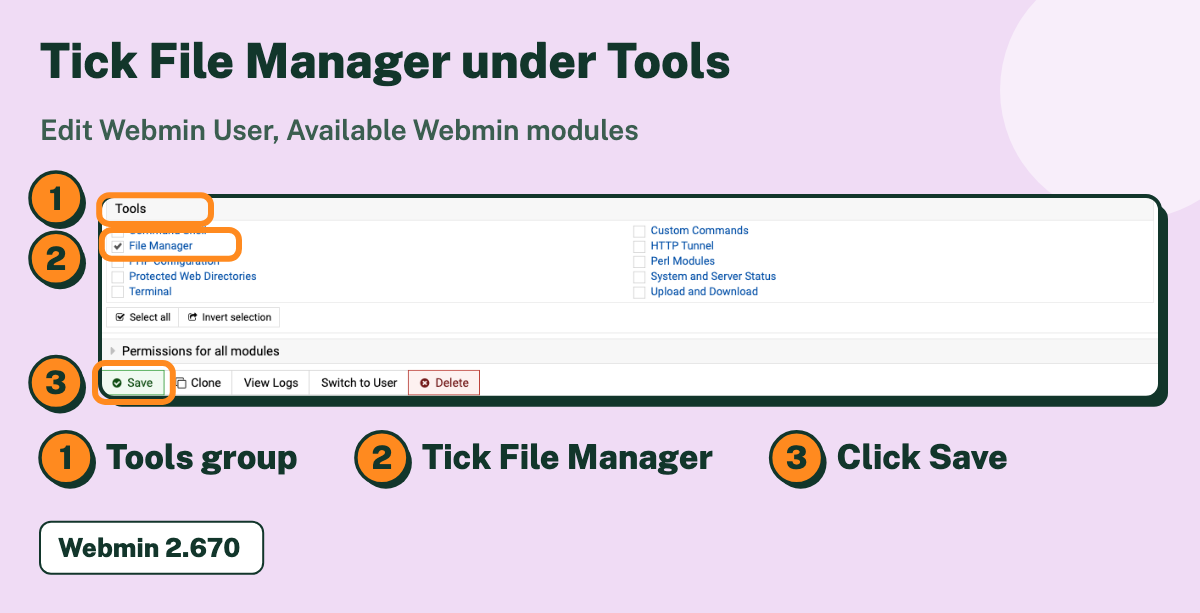
*File Manager ticked in the Tools group of a Webmin user, Webmin 2.670.*
## What can the user reach after a plain tick?
In Webmin 2.670, the privileged test user had no per-user File Manager access-control file of its own. Once File Manager was enabled, that user saw the whole disk, not a home folder, and could download both `/etc/passwd` and `/etc/shadow`, which only root can read. The cause is in the module's default access settings: it works as root by default, and Webmin's own help text for the option says that for a root-capable user the allowed folder `$HOME` is equivalent to `/`, full disk access [2][3]. The module's changelog carries a warning for anyone who handed out File Manager access before that default changed: check the access control [3].

*File Manager for a privileged user with no per-user File Manager access control: the whole disk, owned by root (Webmin 2.670).*
So treat the tick as the first half of the job. Anyone who should not be able to touch system files needs the second half below.
## How do you limit the folders a Webmin user can open?
1. In **Webmin Users**, click the user, open **Available Webmin modules** and click the module name **File Manager**. The name is a link, and it opens **Module Access Control** for that user [5].
2. Under **Allow access to directories**, replace `$HOME` with the folders the user may use, one per line.
3. Under **Access files as Unix user**, choose **Specific Unix user** and enter the Unix account that owns those files. Avoid **Root** for anyone you do not fully trust; Webmin's own label says to grant it with care [3]. Tick **Enable strict user ownership checks** if the user should only delete and move files that account owns [3].
4. Click **Save**, then check it by logging in as that user.
In the test, after the user was set to a Unix account and one allowed folder, the File Manager listed that folder as its top level. A request for `/etc` or a `../` path outside it was refused with a message that the only allowed directory was the one set. The same form also sets which file types the built-in editor may open and the maximum size of an upload [3].

*Module Access Control for File Manager, before and after limiting folders and the Unix user (Webmin 2.670).*
## What is a safe user, and should you use one?
Current Webmin has two buttons on the Webmin Users page: **Create a new privileged user** and **Create a new safe user**. A safe user can use only modules that do not give root access [4]. The form offered 16 modules in the test, and File Manager was one of them. Its stored File Manager settings are the home directory only, with no root access [2]. In the test, a safe user saw only their home folder in the File Manager and was refused anything outside it.
A safe user must be an existing Unix account, because Webmin refuses a name that is not a Unix user in safe mode [4]. For a contractor or client who only needs their own files, a safe user is the quickest route to a sensible default.
## What if File Manager is still missing?
- Open the user's **Available Webmin modules** list again. The section is long, the tick is easy to miss, and nothing is saved until you click **Save**.
- Ask the user to log out and in again. In the test the module appeared at the next login.
- If you are not root, your own Webmin Users access may not let you grant File Manager. That module has a **Can grant access to** option for this [5].
**Next step:** Open Webmin Users, click the File Manager name under each user who has it, and confirm the folders and Unix user. Then see how to [check the size of a directory in Webmin’s File Manager](https://ilogr.com/check-size-of-directory-in-webmin-file-manager/).
## References
1. [Webmin documentation: File Manager](https://webmin.com/docs/modules/file-manager/). Used for: module name, Tools group, first included version, Java replacement.
2. [Webmin source: filemin defaultacl and safeacl](https://github.com/webmin/webmin/tree/master/filemin). Used for: default access settings, safe-user settings, the folder restriction.
3. [Webmin source: filemin lang/en and CHANGELOG](https://github.com/webmin/webmin/blob/master/filemin/lang/en). Used for: option labels, the $HOME help text, the root-default warning.
4. [Webmin source: acl CHANGELOG and lang/en](https://github.com/webmin/webmin/blob/master/acl/lang/en). Used for: safe-mode users, the Unix user requirement.
5. [Webmin documentation: Webmin Users](https://webmin.com/docs/modules/webmin-users/). Used for: where each module's access control is opened.
6. [Webmin on GitHub](https://github.com/webmin/webmin). Used for: the BSD-3-Clause licence and the current release number.
7. [cPanel documentation: File Manager](https://docs.cpanel.net/cpanel/files/file-manager/). Used for: what a commercial panel's file manager offers account holders.